PDI Med Case Logs

Your case list. Built from the notes you've already written.

Paste a clinical note. Get a complete, ABOG-formatted case log entry in about 20 seconds — with every required field extracted, every blocker flagged before it becomes a problem, and your full clinical record encrypted and backed up the moment you commit.

* Need to add Apgars later? PDI Med uses your Vault to keep track of rolling tasks with ease — without keeping an identified and de-identified spreadsheet.

Any EMR · any note format 21 intelligence flags Live pace + deadline tracking PHI encrypted on commit
Case log parser UI
01 — The Parser

Any note. Any EMR. Any format. ABOG fields extracted.

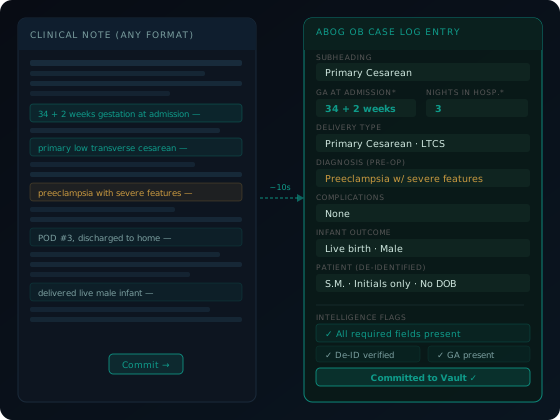
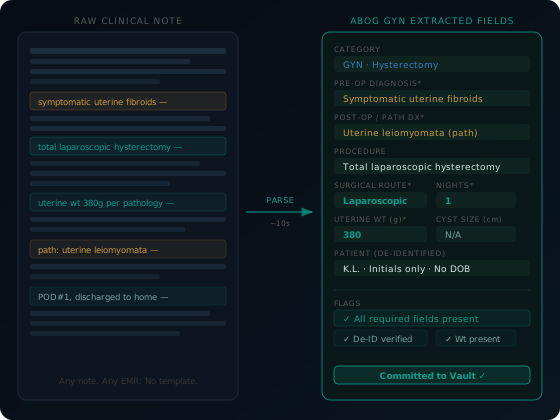
Copy your clinical note from Epic, Cerner, Athena, or any system that displays text. Paste it into PDI Med. The parser reads it — H&P, operative note, office visit, delivery note, whatever you wrote — and extracts the ABOG fields automatically.

In about 20 seconds you get:

  • ABOG section (OB / GYN / Office) and case category
  • Gestational age at admission — standardized to weeks + days
  • Pre-operative and post-operative diagnosis
  • Procedures performed and surgical route
  • Complications, with presence/absence noted
  • Estimated blood loss when clinically relevant
  • Nights in hospital
  • Uterine weight in grams — extracted from the pathology impression
  • Cyst diameter in cm — extracted from operative or imaging language

The richer your note, the better the extraction. You wrote it for the patient record anyway. The parser turns it into your case list entry without any extra work on your end.

No template to fill. No ABOG-specific fields to remember mid-note. Write your note the way you always write it. PDI Med handles the translation.
Parser extraction diagram
02 — 21 Intelligence Flags

Caught at commit. Not months later.

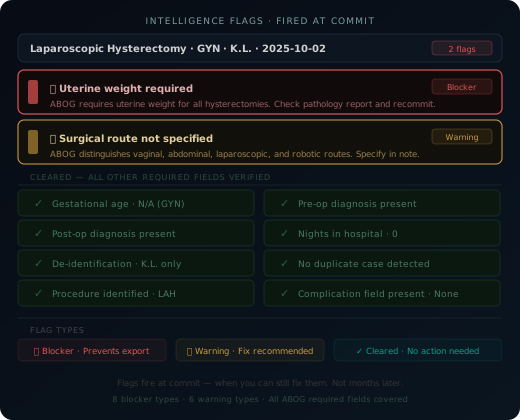
Every flag fires the moment you commit a case — when you still know where to find the answer. A missing uterine weight is a 30-second fix today. It's an impossible retroactive search six months from now. Flags are divided into two types:

Blockers — export locked until resolved

Missing required ABOG fields (uterine weight, gestational age, cyst size), Office count not exactly 40, category maximum exceeded, normal delivery in the OB section. The export button is grayed out until every blocker clears.

Warnings — strategic and quality signals

Vague procedure documentation, missing high-yield case types (no vaginal hysterectomy, no urogyn), surgical route not specified, procedure-diagnosis mismatch, duplicate case detection. Warnings don't block export — they inform your decisions before it's too late to change them.

Intelligence flags panel
Missing uterine weight on hysterectomy
Category at or near maximum count
Normal delivery in OB section
Missing gestational age at admission
Cyst size absent on ovarian case
Procedure conflicts with stated diagnosis
Office count not exactly 40
Surgical route not specified
Duplicate case detected
No vaginal hysterectomy on list
+ 11 more flags covering every ABOG required field and strategic coverage gap
03 — The Intelligence Dashboard

Your case list. Live. Every number that matters, always visible.

The PDI Med case log dashboard is not a spreadsheet. It is a live view of your compliance status — updated the moment you commit a case, always visible at the top of your screen.

At every session you see:

OB
Section counts with live max tracking

OB, GYN, and Office case counts shown against minimums and maximums. Each subcategory tracked individually — so you see before you commit that you already have 2 preeclampsia cases, and a third one won't count.

Pace model vs. actual committed count

Monthly targets (8 · 22 · 44 · 66 · 80+) shown against your real count. A green bar means you're on pace. A red bar means you need to log more cases this month. You know where you stand in month 2, not month 10.

Active blocker and warning count

Every unresolved blocker and warning shown in the intelligence strip. Clicking a flag takes you directly to the case that triggered it — not to a search result. Fix it while the case is still fresh.

Hard deadline countdown

Board application deadline and case list submission deadline count down in real time. Both are visible from day one of the collection year. Missing either one means waiting another year.

Case log intelligence dashboard
04 — Care Arc Linking

The Office section requires visit counts. PDI Med tracks them automatically.

ABOG's Office section requires exactly 40 cases — each with a documented number of office visits for that patient. For a follow-up endometriosis patient you've seen four times, ABOG wants to see 4 visits attached to that case record.

Without automatic tracking, this means manually counting back through months of clinic notes trying to reconstruct how many times a specific patient was seen for a specific problem. Most physicians undercount. Some discover the problem at export.

When the parser detects an encounter for a patient already in your vault, it offers to link the visit to the existing care arc for that case. You confirm. The visit count on that Office case entry increments by one. When you're ready to submit, the visit count is already there — accurate, without a single manual calculation.

Parser detects returning patient Links to existing case arc Visit count increments automatically Accurate at export — no reconstruction
Care arc linking diagram
05 — The Vault

Your full clinical record. Encrypted the moment you commit.

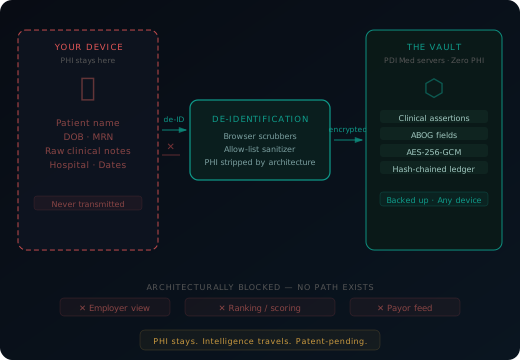
Every case you commit — full clinical detail, patient identity intact — is encrypted with AES-256-GCM under your physician-controlled key and stored on AWS HIPAA-eligible infrastructure. The key never reaches PDI Med servers. We receive and store a ciphertext blob we cannot read.

When your laptop dies — and eventually it will — your case log doesn't die with it. When you switch practices, your vault moves with you. When you need to prove what you documented, the vault is your contemporaneous record, hash-chained and timestamped.

AES-256-GCM · Physician keys AWS HIPAA-eligible PHI never readable by PDI Med Full data portability on request
PHI boundary and vault diagram
06 — ABOG Export

Export unlocks when every blocker clears. Not before.

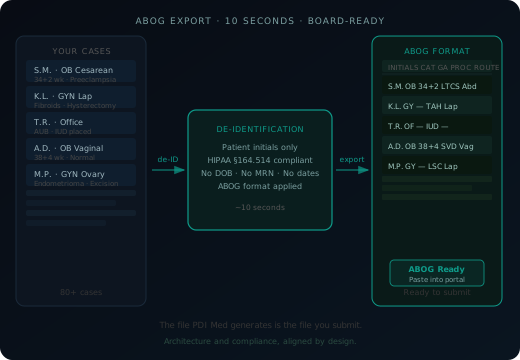
The ABOG export button is not always available. It is locked while any blocker flag is unresolved. This is intentional — a case list with a missing uterine weight or an incorrect Office count will fail at ABOG's portal, not at ours.

When every blocker clears, you generate your submission file:

  • De-identified per HIPAA §164.514 — patient initials only
  • Formatted to ABOG case list field requirements
  • All required fields present — or the export would not have unlocked
  • Ready to paste directly into ABOG's submission portal

There is no reformatting step. There is no "check this against ABOG's requirements" step. The file you generate is the file you submit.

ABOG export generation
07 — Full Workflow

From patient encounter to ABOG case log. Every step.

01

See the patient

You do the clinical work. You write the note you were going to write anyway — in your EMR, in your own language, in your own format.

02

Copy the note

Copy your signed note from Epic, Cerner, Athena, or any system. H&P, op note, office visit, delivery note — any format works.

03

Parser extracts fields

ABOG section, category, diagnosis, procedures, route, GA, complications, uterine weight. ~20 seconds. Review what was pulled and adjust if needed.

04

Flags fire immediately

Blockers and warnings surface before you commit. Missing uterine weight? Category at max? Caught now — when the chart is still open and the answer is findable.

05

Commit the case

Confirm and commit. Entry added to your case log. Category count updates. Dashboard pace recalculates. Vault encrypts and backs up your full clinical record.

06

Export when clear

When every blocker resolves, the export unlocks. De-identified. ABOG-formatted. Paste into ABOG's portal. Done.

08 — The Deck Builder

Your vault holds everything. You choose which cards you play.

The vault is your full clinical collection — every encounter you've committed, every section, every score. When it comes time to submit, you don't submit everything. You submit your strongest 40 per section, curated from everything you've collected.

That's the deck. And building a strong deck is the difference between walking into the oral board exam with your best cases or walking in with whatever happened to be at the top of a spreadsheet.

Sort by strength score

Every case in your vault carries a strength score — a composite of documentation completeness, clinical complexity, examiner topic relevance, and (after board examiner sessions) a defense score. Sort by strength and your best cases surface immediately.

Query by anything

Filter by section, examiner hot topic, gestational age, date committed, or defense score. Run a natural language query: "show me my preterm patients on magnesium" or "what are my weakest PPH cases." Same architecture as the GZIN — but scoped to your vault.

See strong, moderate, and weak at a glance

Cases are color-coded by strength. Green: ready to defend. Gold: defensible with preparation. Red: needs work — or shouldn't be in the submission deck. The deck builder surfaces gaps you can still fix before submission.

Swap any case in or out

PDI Med recommends the strongest 40 — but you override any case. Have a strong defense for a case the algorithm ranks lower? Add it. Have a physician preference for a specific subspecialty area? That's accounted for in the recommendation. The algorithm advises. You decide.

The gate before the gate. The export button does not unlock until your selected deck satisfies every ABOG rule — correct section counts, no category maximums exceeded, all blockers cleared, exactly 40 Office cases. You do not find out at ABOG's portal. You find out here, while there's still time to fix it.
Deck builder: vault of cases on left, query filters in center, curated submission deck on right
Show my strongest OB cases
Shoulder dystocia cases only
Preterm deliveries with magnesium
My weakest examiner topics
Cases not yet interrogated
Sort by gestational age
Complete clinical stories (arc linked)
Vaginal hysterectomy — all routes
+ Natural language vault queries — the same architecture as the GZIN, scoped to your own patients

ABOG GUIDE

Want to understand exactly what ABOG requires — section by section, field by field — along with examiner focus areas, common mistakes, and the timeline? That's what the ABOG Guide is for.

Read the ABOG Guide →

Your collection year starts July 1.
You should already be set up.

30 days free. $49/month after — founding price, locked forever. The cohort closes when it closes.

Join the founding cohort → See pricing